


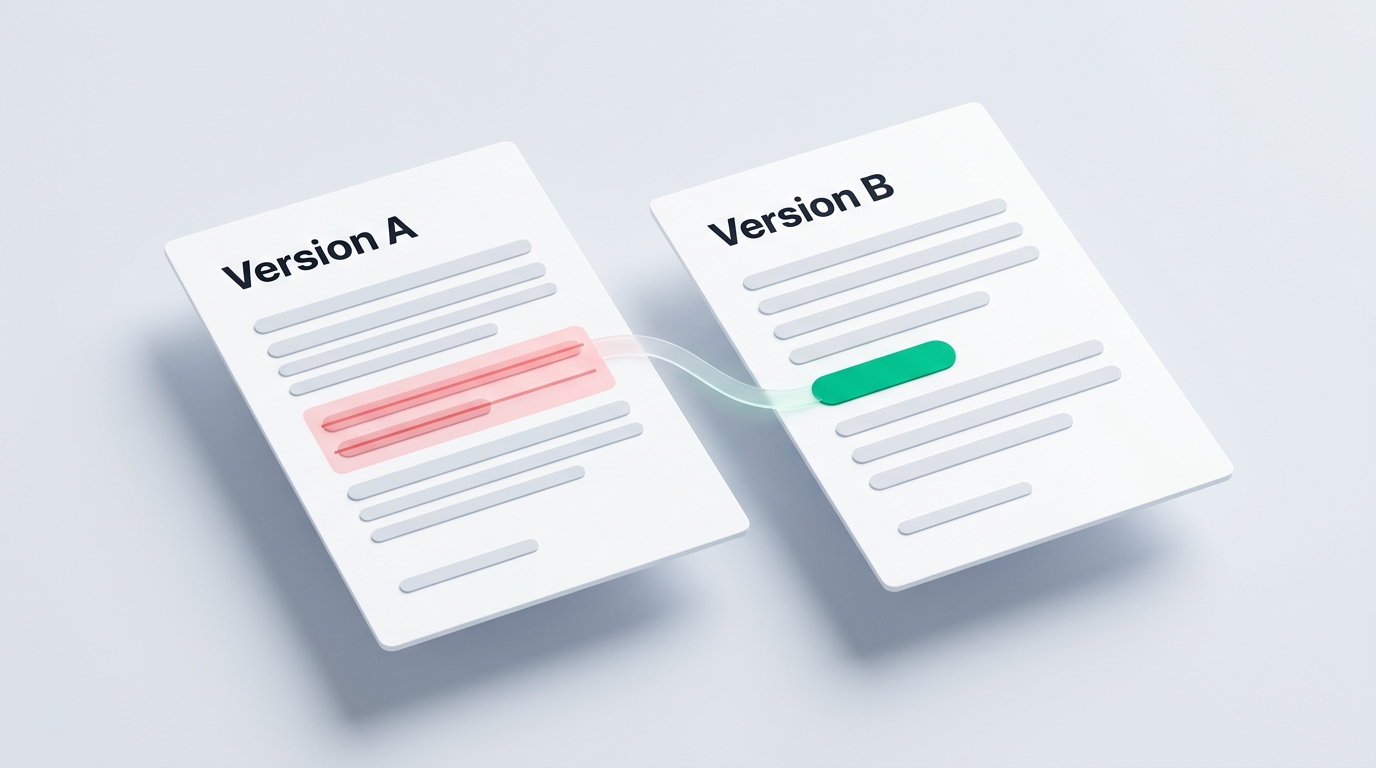
It is one of the most common workplace emails:
“Attached is the updated clean version with just a couple of minor wording adjustments. Please review and confirm so we can proceed.”
You open the attachment. It is a 35-page proposal, a project specification, or a vendor agreement. The sender says they only adjusted a typo, but did they?
During drafting and revisions, document changes happen rapidly. Even when everyone is collaborating in good faith, sentences get accidentally dropped, milestone dates shift, and numbers wander. In detailed projects, subtle alterations can shift deliverables or create unexpected misalignments.
Reading thirty pages side-by-side with your naked eyes is a recipe for fatigue and missed details. Fortunately, you don’t need expensive enterprise software to catch every change.
Automated document diffing removes the guesswork, allowing you to audit document revisions with complete accuracy.
Why Manual Comparison Routines Consistently Fail
When faced with two versions of an important document, most teams fall back on manual routines that are either painfully slow or dangerously insecure:
- The “Two-Monitor Stare” (Visual Manual Review): You put Version A on your left screen and Version B on your right screen, scanning back and forth with your mouse pointer. By page 5, eye fatigue sets in. Human eyes naturally skip over swapped words like “may” versus “shall”, or a project timeline quietly adjusted from “30 days” to “3 days”.
- The “Copy-Paste into Word” Workaround: Copying text out of two PDFs into Microsoft Word’s comparison feature often breaks tables, removes headers, and scrambles multi-column layouts. Even worse, it completely ignores visual changes like moved signature blocks, swapped logos, or altered chart images.
- Uploading to Generic Free Web Converters: Searching for a “free PDF diff tool” leads to dozens of cloud websites. But the moment you click upload, your unreleased draft, compensation figures, or confidential project notes are transmitted to a third-party server. For proprietary paperwork, this is an unacceptable breach of data privacy.
Dual-Engine In-Browser Diff: Spotting Text & Layout Shifts
You can audit two versions with pixel-level precision and complete confidentiality using the client-side Compare PDF Tool.
[ Negotiated Draft (v1) ]      [ Incoming Final (v2) ]
            │                              │
            └──────────────┬───────────────┘
            ▼ (Drag & Drop Baseline & Revision)
             [ Dual-Engine In-Browser Diff ]
                            │
              ┌─────────────┴─────────────┐
              ▼                           ▼
     [ Color-Coded Text Diff ]   [ High-Contrast Visual Overlay ]
     (Words added / removed)      (Shifted lines / swapped stamps)
Loading Baseline and Revision Documents
Open the Compare PDF Tool in any modern web browser. Drop your original draft into the left panel (Baseline) and the incoming new revision into the right panel (Revision).
The diffing engine evaluates character streams and raster layers in client-side memory. Your project specifications, compensation numbers, and proprietary terms are never transmitted over the network, ensuring complete control over internal documents.
Synchronized Scrolling and Semantic Text Diffing
Once loaded, the two documents lock together in synchronized scrolling. As you navigate through the baseline, the revision tracks in parallel.
The semantic text engine highlights every textual delta:
- Green Highlighting: Words, sentences, or paragraphs that were added in the new version;
- Red Strikethrough: Clauses, terms, or figures that were deleted from the original.
Detecting Layout and Pixel Inconsistencies
Switch to the Visual Overlay mode to inspect non-textual alterations. While character diffing identifies phrasing edits, the visual overlay catches physical millimeter displacements:
- Relocated signature blocks or shifted initials lines;
- Modified diagram callouts, altered watermark seals, or replaced corporate logos;
- Point-size reductions designed to squeeze secondary notes onto unread margins.
5 Subtle Changes to Watch for in Document Reviews
When reviewing an incoming revision, pay special attention to these five areas where subtle edits frequently occur:
| Review Area | What Typically Changes | Why It Matters |
|---|---|---|
| Delivery Timelines | “30 days window” changed to “10 days” or “3 days”. | Reduces operational turnaround buffers and impacts planning. |
| Discretionary Language | “Team A shall provide updates” changed to “Team A may provide updates”. | Turns a firm commitment into an optional courtesy. |
| Scope Limitations | An added reference sentence to an external secondary document. | Quietly alters the boundaries of the original project scope. |
| Review Windows | Reducing the written feedback window from 14 days to 48 hours. | Leaves almost zero time for thorough team review. |
| Specification Metrics | Subtle adjustments to technical tolerances or delivery formats. | Changes technical acceptance criteria without clear discussion. |
Action Plan After Completing Your Audit
Once you have evaluated the deltas between your two PDF files, execute your next step immediately:
- Everything Matches Your Agreed Terms?
If the changes align with expectations, transition into our Sign PDF Tool to apply an authentic electronic signature or initials block without physical printing. - Caught an Unapproved Alteration or Typo?
Open the file in our Edit PDF Tool to strike out unauthorized additions, insert corrective markup, or leave clear visual callout notes. - Ready to Archive the Completed Master?
Seal the finalized document with 256-bit AES encryption using our Protect PDF Tool to prevent unauthorized downstream modifications.
Vigilance as Standard Operating Procedure
Never finalize an updated PDF based on casual glance alone. Human eyes get tired, but automated comparison engines catch every missing comma, altered figure, and swapped word in seconds.
By comparing your documents locally inside your browser with VersaPDF Compare PDF, you safeguard your project specifications while keeping confidential files strictly private.