


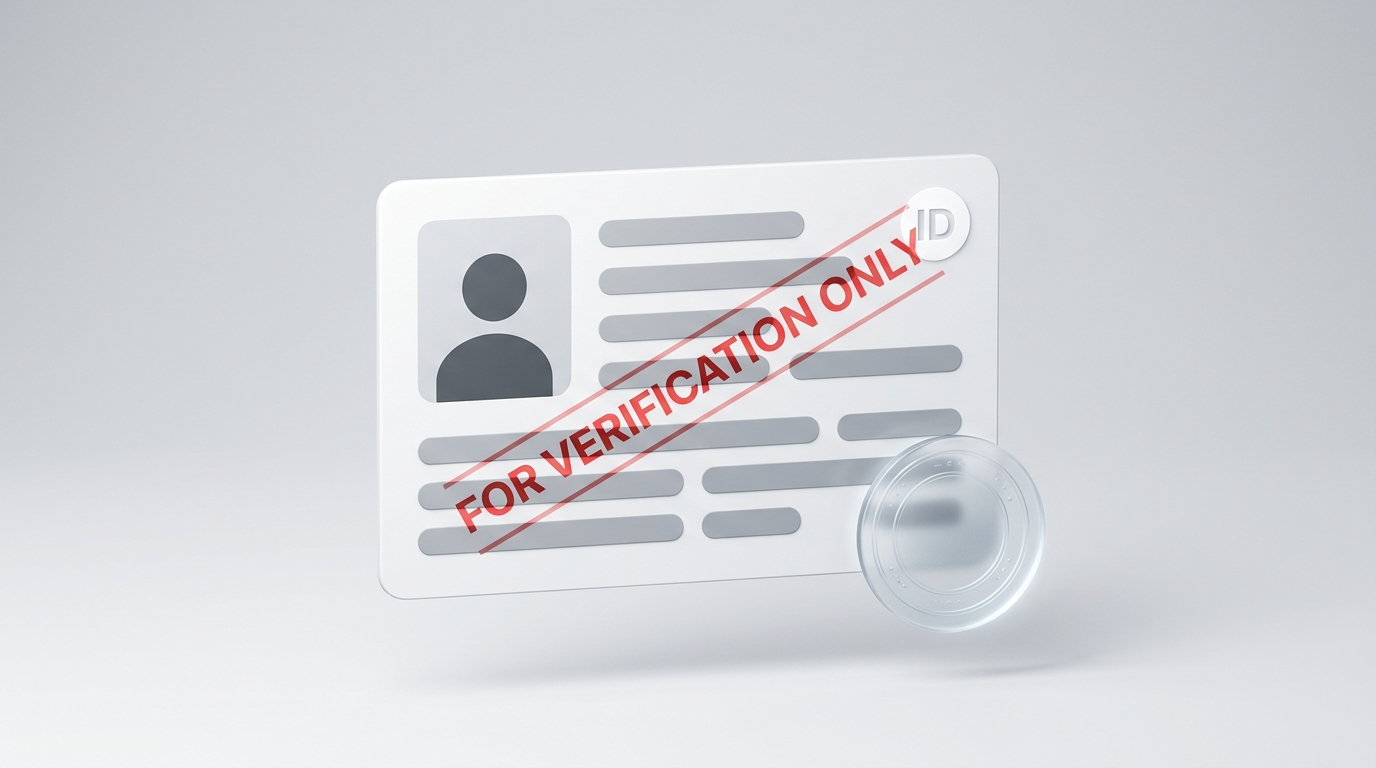
At some point this year, you will almost certainly be asked to email a photo or PDF scan of your most sensitive personal documents:
- Renting an apartment and sending your driver’s license to a landlord;
- Opening a bank account, freelance profile, or investment account;
- Registering a business or store on an e-commerce platform that demands incorporation papers and passport scans;
- Applying for a car loan, mortgage, or employment background check.
Most people scan their ID card, attach the file to an email, and hit send without a second thought.
That single action is one of the most dangerous digital habits in modern life: transmitting a pristine, unwatermarked, high-resolution copy of your government credentials.
Once that unwatermarked scan leaves your outbox, you lose all control over it. It sits indefinitely in an estate agent’s unencrypted Gmail, on a car dealership’s shared desktop, or in a startup’s cloud storage. If that company suffers a data breach, your clean scan becomes the master key for fraudsters to open fraudulent credit cards, apply for loans, or register shell companies in your name.
Protecting these records does not require graphic design skills or paid software subscriptions. Here is how clean-scan identity theft happens, the golden rules of a fraud-proof watermark, and how to safeguard your files locally.
Why “Clean” ID Scans Are an Identity Thief’s Dream
To understand why watermarking is so vital, you need to look at how identity thieves operate.
Criminal syndicates do not just want your name and date of birth—they can buy that on the dark web for pennies. What they desperately need is pristine digital documentation that passes automated Know-Your-Customer (KYC) onboarding software at online banks, loan apps, and mobile carriers.
When you send a clean scan:
- Fraudsters can reuse your exact image to pass automated identity verification;
- Rogue employees or hackers who breach small business inboxes can sell your clean scan to credential-stuffing rings;
- You have zero forensic evidence showing which company leaked your data.
Many people try to solve this by writing on a paper sticky note and placing it next to the card when taking a photo. Unfortunately, fraudsters easily crop out the sticky note in two seconds, leaving behind a perfectly usable, clean document.
The protection must be permanently fused across the document artwork itself.
The 3 Golden Rules of a Fraud-Proof Watermark
A careless watermark like a tiny “Confidential” stamp in the bottom-right corner provides zero protection—anyone with basic photo editing software can crop it out.
To genuinely prevent unauthorized reuse while ensuring legitimate verification officers accept your document, follow these three rules:
Rule 1: Name the Specific Recipient and Purpose
Never use vague phrases like “For Verification Only”. An identity thief can still take that scan to an online lender and say, “See, it’s for verification.”
Always bind the text to the exact company and transaction:
✅ High-Security Example:
"Submitted exclusively to Oakwood Realty for 104 Main St Lease Application – Nov 2026. Void for any other purpose."
If this scan is ever stolen or leaked, no bank or merchant can legitimately accept it, and you have undeniable proof of which recipient leaked your file.
Rule 2: Use a Diagonal Overlay Across the Document
Place your watermark text diagonally (around -45 degrees) repeating across the face of the document.
Positioning the text directly across your photo, name, and ID number prevents fraudsters from cropping around the mark. If someone tries to use AI image-cleanup tools to paint over the text, the underlying background security patterns and facial features blur noticeably, immediately failing visual inspection.
Rule 3: Calibrate Opacity to the “Sweet Spot” (20% to 30%)
This is the balance you must strike:
- Too Opaque (over 50%): Your document gets rejected by automated KYC scanners or human review officers because they cannot clearly read your ID number or see your photo.
- Too Faint (under 10%): The watermark is easy to edit out or ignore.
- The Sweet Spot (20% to 30%): The underlying names, expiration dates, and holograms remain 100% legible for legitimate verification, but the watermark text is bold enough to make secondary reuse legally and technically impossible.
Applying a Client-Side Watermark Locally
You do not need Photoshop or paid desktop subscriptions to stamp credentials. You can apply legal-grade text overlays directly on your local device with the browser-based Add Watermark Tool.
[ Sensitive Passport / Driver's License ]
                    │
                    ▼ (Local Drag & Drop)
    [ Client-Side Watermarking Canvas ] ──► Apply diagonal text at 25% opacity
                    │
                    ▼ (Instant Download)
  [ Tamper-Proof, Single-Use Document ]
1. Ingesting Your Image or PDF Locally
Open the Add Watermark Tool. If your credential is currently a smartphone photo (such as a JPG or PNG), you can standardize it into an official document format first using our JPG to PDF Tool.
Drop your file into the work area. Because the conversion runs via WebAssembly directly on your machine’s CPU, your passport or driver’s license never crosses the internet to a third-party server.
2. Tailoring Your Protective Stamp
In the watermark configuration panel:
- Input your specific recipient notice (e.g., “For [Company Name] Application Only – [Date]”);
- Select Diagonal (-45°) to ensure the text intersects facial portraits and identification numbers;
- Drag the transparency slider to 25% or 30% so background holograms and text stay crisp;
- Choose a high-contrast hue, such as dark slate or deep crimson, ensuring it remains unmistakable on both light backgrounds and dark photo borders.
3. Fusing the Layer into the Document Stream
When you click Watermark PDF, the browser writes the semi-transparent text string directly into the PDF coordinate tree in local memory. The exported file downloads immediately to your storage drive, creating an audit-ready, single-purpose credential.
Additional Security Steps for Ultra-Sensitive Filings
- Do They Really Need Your Full Identifier?
If an employer or landlord only requires proof of identity or age, they often have no business seeing your full Social Security number, banking routing code, or national insurance digits. Use our zero-upload Redact PDF Tool to permanently black out those digits before stamping your watermark. - Securing Public Transmissions:
When transmitting confidential documents over standard email, pair your watermarked file with a strong 256-bit AES password using our Protect PDF Tool, and deliver the decryption passphrase over an out-of-band communication channel like SMS or Signal.
Action Plan for Everyday ID Submissions
| Document Stage | Best Security Practice | Recommended Tool |
|---|---|---|
| Raw Smartphone Snapshots | Standardize camera photos into fixed-dimension PDFs | JPG to PDF |
| Excess Data Scrubbing | Permanently excise unneeded SSN or license digits | Redact PDF |
| Recipient Binding | Stamp specific recipient, purpose, and date at 25% opacity | Add Watermark |
| Transit Encryption | Seal with an AES password and share the key via separate SMS | Protect PDF |
Taking thirty seconds to bind your government credentials to a specific recipient before emailing them is the most effective safeguard against identity theft. A watermarked ID serves legitimate verification, while remaining completely useless to criminals.