


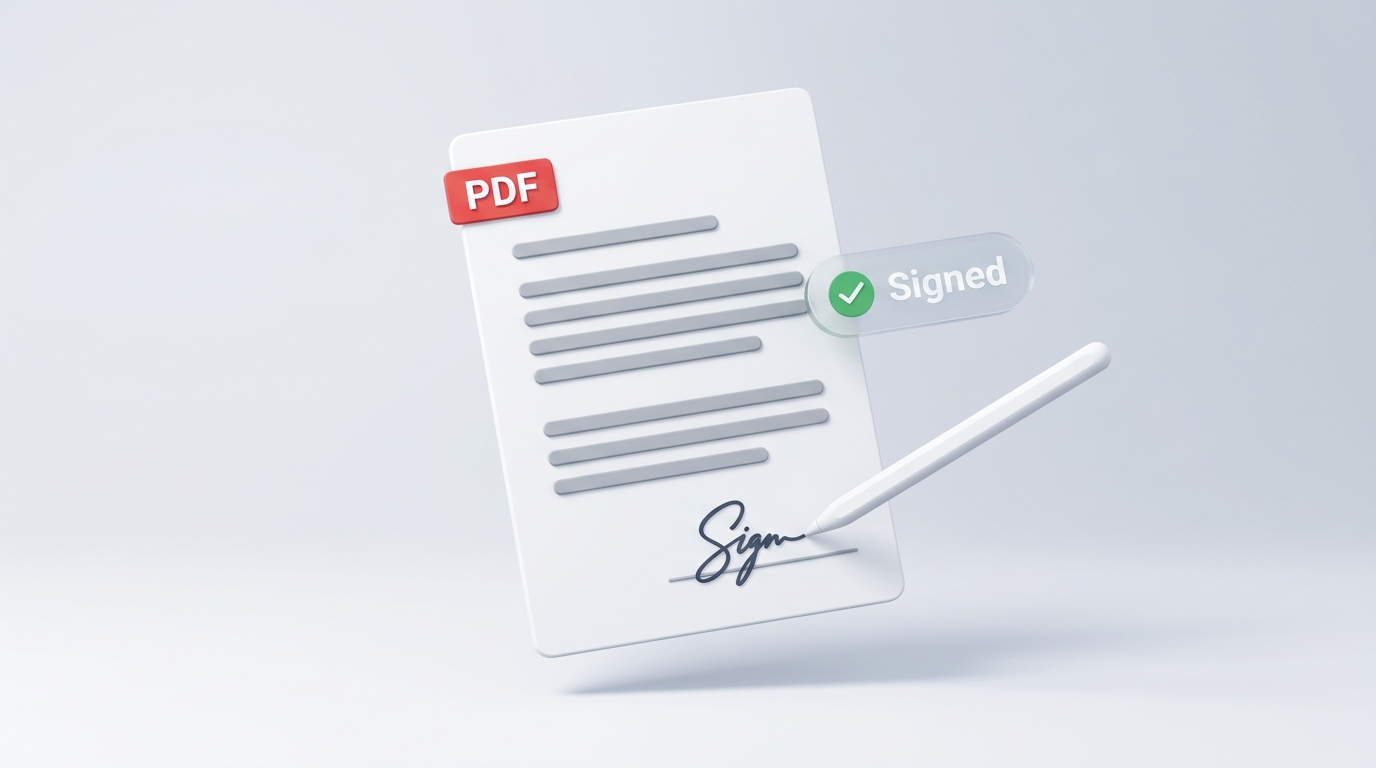
We have all experienced the frustrating printer loop: someone emails a multi-page contract, agreement, or lease, and suddenly you are expected to print pages on paper, search for a working blue-ink pen, sign the signature line, hunt down a flatbed scanner or phone scanning app, and email back a crooked, blurry file.
Beyond wasting time and paper, physical printing degrades document clarity. Text becomes grainy, vector fonts turn into low-resolution bitmaps, and multi-page packages swell into massive 30-megabyte attachments that bounce against email size limits.
On the other hand, heavy corporate e-signature platforms often demand expensive subscriptions ($20 to $30 per user every month) or force both sender and recipient to create unnecessary accounts. Worse, free online signature websites require uploading your private documents and personal signature image to unknown remote servers.
Here is a practical guide on how digital signatures work on a technical level, the difference between drawing and typing your autograph, and how to complete your documents cleanly on your computer or phone without printing or compromising privacy.
How Digital Signing Works in Modern Workflows
For decades, business agreements relied on physical ink bonding with paper fibers. In modern digital workflows, signing a document serves a straightforward technical purpose: embedding an explicit, visible mark of execution alongside recipient consent directly into the digital file.
Rather than going through the cumbersome print-sign-scan routine, modern document standards allow electronic signatures to be integrated into the file’s native coordinate tree. When you draw, type, or place an autograph onto a PDF and send it to your partner or client, you establish a clear, legible record of completion.
Because the signature is rendered digitally:
- The original document’s vector typography stays 100% sharp;
- Multi-page file sizes stay under one megabyte instead of ballooning into blurry scanner bitmaps;
- Both parties receive an identical, high-fidelity copy without desk shadows or crooked angles.
3 Practical Ways to Sign a PDF Digitally
Depending on your device and aesthetic preference, there are three primary ways to affix an electronic signature to a PDF without opening a physical pen cap:
[ Your Device ]
  ├── 1. Draw Signature  ──> Stylus, Finger (Mobile), or Mouse/Trackpad
  ├── 2. Type Signature  ──> Typed Full Name in Professional Script Calligraphy
  └── 3. Upload Stamp    ──> Transparent PNG of Pre-Drawn Signature or Company Seal
1. Draw with a Trackpad, Stylus, or Touchscreen
Drawing your signature replicates the natural flow of a physical pen stroke. If you are using a laptop with a modern trackpad, a touchscreen tablet, or a smartphone, your finger or stylus provides smooth, pressure-sensitive curves. This method is ideal when you want the recipient to see your authentic, recognizable handwriting.
2. Type with Styled Script Typography
If drawing with a computer mouse feels awkward, typing your full name using an elegant typographic script is clean and widely adopted in modern business communication. Professional script typography produces a neat, uniform appearance suitable for invoices, purchase orders, freelance scopes of work, and project sign-offs.
3. Upload a Transparent PNG Signature
Many professionals keep a high-resolution, transparent-background image of their authentic signature saved locally on their computer. By uploading this image directly onto the signature block, you maintain identical visual fidelity on every document without having to re-draw it by hand every time.
Why You Should Avoid Cloud Signature Uploads
When searching for “free sign PDF online,” most search results lead to cloud-based converter platforms. While convenient, this practice introduces real security hazards:
- Surrendering Your Personal Signature: Your handwritten signature is a personal identifier used across personal, financial, and administrative records. Uploading a clean, high-resolution graphic of your signature to an unvetted cloud database gives third-party systems a reusable digital copy of your handwriting.
- Exposing Confidential Terms: Routine agreements contain financial compensation figures, intellectual property descriptions, client addresses, and proprietary terms. Transmitting unencrypted drafts across public networks risks data exposure if the service suffers a database breach or caches temporary files indefinitely.
The safer approach is client-side in-browser signing, where your document and your signature never travel beyond your device’s memory.
Step-by-Step: How to Sign a PDF Safely in VersaPDF
Using VersaPDF’s client-side WebAssembly technology, the entire signing process takes place within your browser tab. No files are uploaded to external servers, and zero network traffic occurs during processing.
Step 1: Open the Document
Go to the Sign PDF Tool. Drag and drop your document into the workspace. The file is read directly into your computer’s local RAM.
Step 2: Fill Any Preceding Fields
If your document requires dates, names, or addresses before the signature line, fill them out first. If the file has interactive fillable form fields, use our Fill PDF Forms Tool to enter your information cleanly before placing final marks.
Step 3: Create and Position Your Signature
Click Add Signature. Choose between Draw, Type, or Upload:
- Draw your signature with your mouse, finger, or trackpad;
- Type your name and pick your preferred script style;
- Or select your saved transparent signature image.
Drag the signature box onto the designated signature line, resize it to fit the box naturally, and click to place it.
Step 4: Download and Protect the Signed Document
Click Sign & Download to generate the completed PDF. The local engine injects your signature graphic directly into the document’s vector coordinate tree without re-compressing the surrounding text.
Post-Signing Checklist: Preparing Files for Delivery
Before emailing your signed agreement back to the counterparty, follow these best practices:
- Lock Against Unauthorized Edits: Once you have signed, prevent subsequent recipients from modifying terms or altering numbers. Add an administrative permissions lock using our client-side Protect PDF Tool.
- Scrub Internal Notes or Private Digits: If the document includes internal draft remarks, temporary notes, or private account numbers that should not be visible to outside observers, black them out permanently with our Redact PDF Tool.
- Combine with Supporting Exhibits: If the agreement requires accompanying project specifications, identity verification, or scopes of work, assemble them into one clean, ordered package using our zero-upload Merge PDF Tool.