


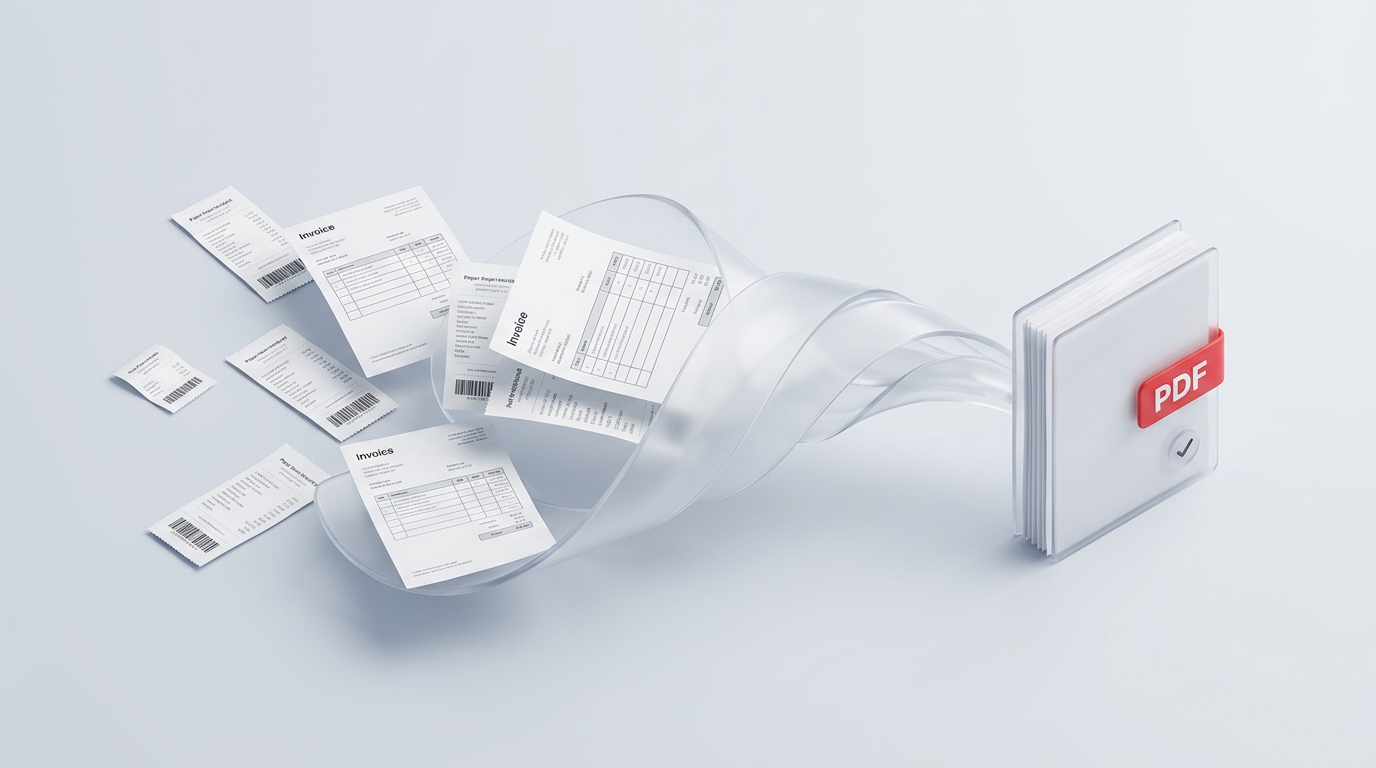
Whether you are preparing a corporate expense report, submitting loan paperwork, filing taxes, or bundling exhibits for a client proposal, you will inevitably face the “attachment avalanche.”
You start with the best intentions, but your source files come from everywhere:
- Two formal agreements scanned as vertical portrait pages;
- A spreadsheet export that sits horizontally in landscape format;
- A dozen mobile snapshots of receipts, half of which are rotated sideways;
- An older statement with random blank pages at the end;
- Loose photos showing cluttered desk edges and dark shadow borders.
Sending twenty loose email attachments is an easy way to frustrate an accountant, loan officer, or client. On the other hand, cramming them together carelessly results in sideways receipts, illegible tiny tables, and messy submissions that get rejected.
Here is a practical, four-step workflow to assemble diverse documents into a single, polished, and audit-ready PDF packet in just a few minutes—using only your browser and zero cloud uploads.
1. Pre-Collation: The Zero-Padding File Trick
If you select 25 files on your computer and drag them into a document merger, operating systems sort them lexicographically. That means a file named Receipt_10.pdf will often jump ahead of Receipt_2.pdf. Re-dragging twenty thumbnails by hand inside a browser window is frustrating and prone to mistakes.
Taking thirty seconds to rename your files using two-digit padded prefixes solves the problem before you even open your browser:
01_Executive_Summary.pdf02_Signed_Agreement.pdf03_Q3_Balance_Sheet.pdf04_Travel_Receipts_Oct.pdf...12_Bank_Confirmation.pdf
Because computer file pickers read 01 through 12 in strict sequential order, your entire batch lands on the screen in perfect chronological sequence the second you drop them in.
2. Harmonizing Dimensions: Landscape vs. Portrait
A common reason merged documents look amateurish is mixed orientation and unnecessary white space. When an invoice in portrait is followed by an A3 financial spreadsheet in landscape, and then a sideways receipt photo, anyone reading the document has to constantly crane their neck or rotate their tablet.
Before fusing everything into a master file:
- Rotate Sideways Scans: Smartphone camera scans frequently lose their orientation metadata, causing vertical receipts to appear on their side. Using a quick Rotate PDF Tool to orient all pages right-side up takes seconds.
- Leave Spreadsheets in Native Landscape: Don’t force wide, multi-column tables into a squished vertical portrait page just to match the rest of the document. PDF readers handle mixed page orientations gracefully, as long as each page is turned to its readable direction.
- Prune Trailing Blank Sheets: Office multi-function copiers frequently append an empty page at the end of double-sided scans. Strip these out using Remove Pages before assembling so your reader isn’t scrolling through blank paper.
3. Assembling the Master Packet (Step-by-Step)
Once your loose components are named and prepped, you can fuse them into a seamless deliverable using our in-browser Merge PDF Tool.
[ Invoices + Receipts + Spreadsheets ]
                 │
                 ▼ (Single Batch Drop)
    [ Visual Grid Workspace ] ──► Reorder, remove blank pages
                 │
                 ▼ (Local-First Merge)
[ One Consolidated Master PDF ]- Open the Workspace: Navigate to the Merge PDF Tool in your browser.
- Batch Drop Your Files: Select all pre-sorted files from your local folder and drag them together into the dropzone. Because VersaPDF processes files directly inside your browser’s local sandbox, you don’t have to wait for large attachments to upload to a remote server.
- Verify the Grid: Glance over the thumbnail layout. If you need to tuck a late receipt between items 4 and 5, simply drag the thumbnail to its new position.
- Compile and Save: Click Merge PDF. Your browser combines the underlying vector streams and embedded images locally in memory, downloading a single consolidated document to your computer immediately.
4. Professional Finishing Touches
If you want your consolidated package to look like it was compiled by a professional legal or accounting firm, two quick additions make an enormous difference:
Add Unified Page Numbering
When a reviewer receives a 40-page consolidated packet containing contracts, receipts, and bank statements, their original page numbers will conflict. Page 3 of the contract will be followed by Page 1 of the bank statement, making references during meetings or audits confusing.
Running your merged file through our Add Page Numbers Tool places a clean, consistent footer (Page 1 of 42, Page 2 of 42) across the entire binder. When someone says, “Take a look at the discrepancy on page 19,” everyone is looking at the exact same sheet.
Crop Out Dark Borders & Desk Clutter
When photographing paper receipts or physical certificates with a phone camera, you almost always capture part of the desk, keyboard, or kitchen counter in the background. Beyond looking sloppy in an audit packet, those high-contrast dark borders make receipts harder to read when printed.
Running those pages through our Crop PDF Tool trims away the extraneous desk margins in seconds. You are left with clean, rectangular document borders that look as if they were fed through a flatbed office scanner.
Split Logically If Hitting Strict Email Caps
If you are submitting dozens of exhibits and your recipient’s corporate mail server enforces a rigid attachment limit, don’t revert to sending loose, unorganized chaos. Use our Split PDF Tool to cleanly divide your master package into two logical volumes (for example, “Part 1: Master Contract & Summary” and “Part 2: Financial Receipts & Schedules”). Each volume keeps its clean internal organization and unified page hierarchy.
Quick Submission Checklist
Before emailing your consolidated document, run through this 15-second pre-flight check:
| Quality Check | What to Look For | How to Fix |
|---|---|---|
| Reading Orientation | Are all receipt snapshots and tables right-side up? | Use Rotate PDF on affected pages. |
| Sequence | Does the summary or cover page sit at the very front? | Reorder thumbnails in Organize PDF. |
| Clean Margins | Are receipt photos surrounded by messy desk backgrounds? | Trim edges with Crop PDF. |
| Blank Pages | Did any scanner feed error insert white pages? | Delete blank thumbnails with Remove Pages. |
| Data Privacy | Do bank statements or tax IDs leave your computer? | With VersaPDF’s local processing, zero files touch third-party cloud servers. |
Wrap Up
A messy collection of loose, misaligned attachments creates unnecessary friction and signals rushed work. With just two minutes of thoughtful pre-naming and a fast in-browser assembly tool, you can transform chaotic receipts, agreements, and spreadsheets into a clean, unified document ready for any audit or executive review.