


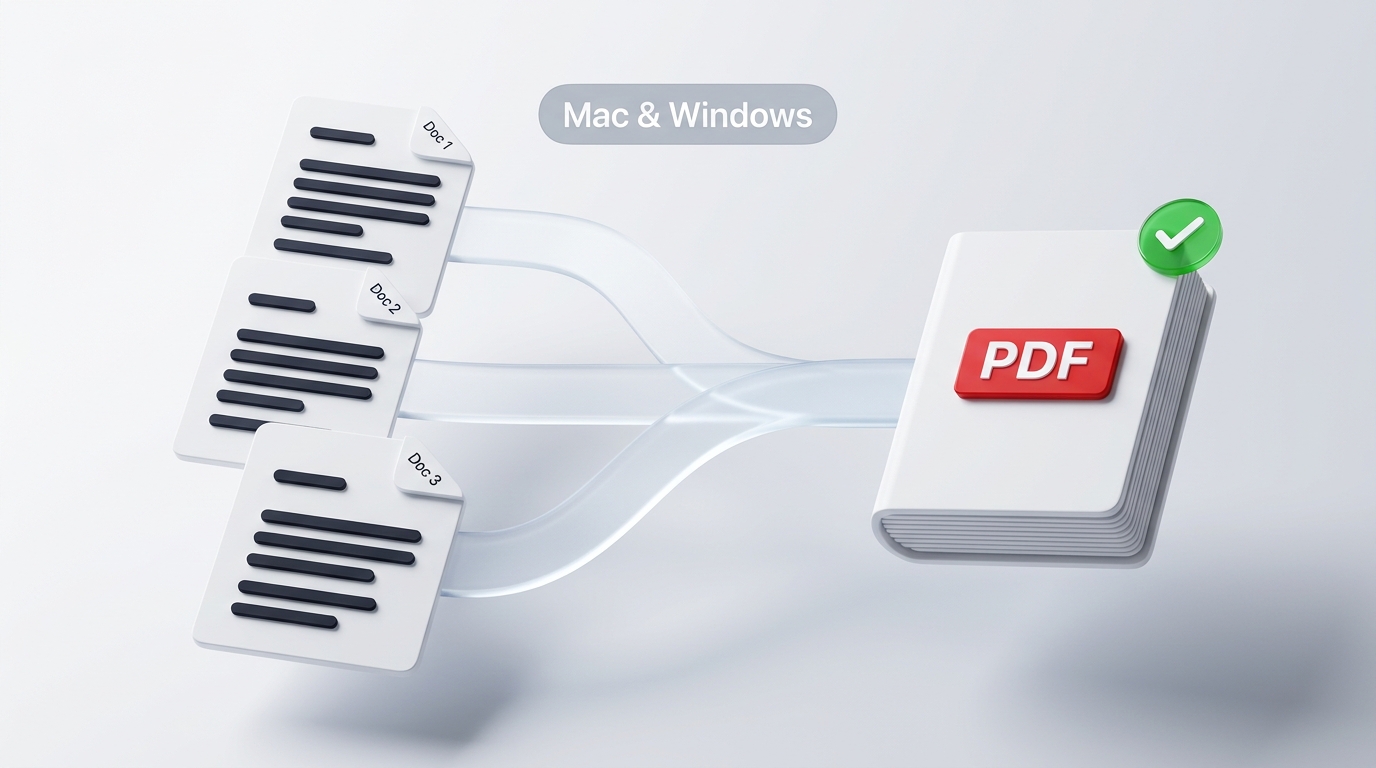
Combining several separate PDF documents into one unified file is one of the most common tasks in digital paperwork:
- Merging a resume, cover letter, and references into a single job application;
- Bundling a signed contract with its statement of work and billing schedules;
- Consolidating multiple tax forms, bank statements, and utility receipts into a loan submission packet.
Yet, despite being such a universal daily need, merging PDFs remains surprisingly frustrating depending on what computer you use.
Mac has a hidden native feature that many users don’t know exists. Windows has no built-in merge tool whatsoever. And searching Google for “merge PDF free” often leads to sketchy cloud converters that impose 15MB file caps, hit you with sudden paywalls, or store your private documents on unknown servers.
Here is a straightforward, complete guide to merging your PDF files on Mac and Windows—safely, quickly, and 100% free.
Method 1: How to Merge PDFs on Mac Using Built-in Preview
If you use a Mac, macOS actually includes a built-in document tool called Preview that can merge PDFs without installing third-party apps:
- Open the First File: Double-click your first PDF to open it in Apple Preview.
- Enable Thumbnails: In the top menu bar, click View > Thumbnails (or press
Option + Command + 2). A sidebar will appear on the left showing page thumbnails. - Select Where to Insert: Click on the specific thumbnail where you want to insert the new pages (for example, the very last page).
- Drag and Drop the Second File: Open your Mac Finder window, locate your second PDF, and drag it directly into the Preview thumbnail sidebar. Drop it right below the last page.
- Export the Merged Document: Click File > Export as PDF, name your consolidated file, and save it to your disk.
The Limitations of the Mac Preview Method
While Apple Preview is handy for combining two short documents, it quickly becomes unwieldy:
- Reordering twenty or thirty pages across multiple documents inside a narrow sidebar is clunky and error-prone;
- It is easy to accidentally overwrite your original document if you hit
Command + Sinstead of exporting a new copy; - It only works if you are on an Apple computer—if you switch to a Windows PC or an office workstation, you lose this workflow completely.
Method 2: The Windows Dilemma (Why Windows Makes It Harder)
If you are on Windows 10 or Windows 11, you have likely noticed a frustrating gap: Windows does not include a native tool to combine PDF files.
- Microsoft Edge includes a decent PDF viewer with pen markup features, but it has no option to merge two files together.
- Microsoft Word can import and convert PDFs, but it reflows the entire document into an editable text stream. If your PDF has tables, custom fonts, or multi-column layouts, Word frequently scrambles the design.
- Third-Party Desktop Installers: Searching online often leads to ad-heavy desktop programs (
.exefiles) that bundle unwanted browser toolbars, bloatware, or trial watermarks.
For Windows users, installing bulky software just to combine a few pages is overkill.
Method 3: The Universal In-Browser Solution (Fast, Free, & Private on Any PC)
The easiest and most secure way to merge PDFs across both Mac and Windows is using an in-browser, client-side tool like VersaPDF Merge PDF.
Because the processing executes entirely inside your browser’s private memory, you get the convenience of a modern visual interface with the security of an offline desktop app.
[ Multiple Loose PDFs ]
           │
           ▼ (Drag & Drop)
[ Visual Grid Canvas ] ──► Reorder thumbnails, rotate crooked sheets
           │
           ▼ (Instant Local Assembly)
[ One Consolidated Master PDF ]
Step 1: Open the Merger
Navigate to the Merge PDF Tool in Chrome, Edge, Safari, Firefox, or Brave.
Drag all the PDF files you want to combine directly into the work area. Because the tool runs locally on your computer’s processor, files load instantly. No document data is ever uploaded to a remote cloud server, meaning you can safely assemble confidential payroll records, medical charts, and legal contracts with zero data breach risks.
Step 2: Arrange Your Pages Visually
Unlike clunky sidebar menus, you are presented with a wide, intuitive grid of page thumbnails:
- Drag and drop documents or individual pages to reorder them into your exact desired sequence;
- Did a mobile phone scan land sideways? Use our quick Rotate PDF Tool to orient pages right-side up;
- Notice a duplicate or blank cover sheet? Click the trash icon to delete unnecessary pages immediately.
Step 3: Combine and Download
Click Merge PDF.
Your browser stitches the vector streams and images together in volatile device memory and downloads your clean, single PDF immediately. No file size limits, no waiting in upload queues, and no paywalls.
Comparing Your Options Side-by-Side
| Feature | Apple Preview (Mac) | Word / Third-Party .EXE (Win) | VersaPDF In-Browser Merger |
|---|---|---|---|
| Platform Compatibility | macOS only | Windows only (often clunky) | Universal (Mac, Windows, Chromebook, Mobile) |
| Cost | Free (built-in) | Freemium / Paid licenses | 100% Free |
| Visual Page Reordering | Narrow sidebar | Not available | Wide interactive drag-and-drop grid |
| Formatting Protection | Preserves layout | Often scrambles formatting | Lossless native vector preservation |
| File Privacy | Local disk | Varies (often risky) | High (100% local in-browser processing) |
3 Finishing Touches for a Professional Document
Once your files are merged into a single package, take two extra minutes to give your deliverable an executive-level polish:
- Add Unified Page Numbers: If you combined three separate 5-page agreements, their original page numbering will reset back to “1” three times. Use our Add Page Numbers Tool to apply continuous footers (
Page 1 of 15,Page 2 of 15) so your readers can easily reference specific pages. - Split Out Unneeded Appendices Later: If you ever need to extract just the middle section or a specific signed exhibit from your master file, you can cleanly separate it using our Split PDF Tool.
- Lock with Encryption Before Emailing: If your combined binder contains bank credentials, tax information, or confidential IP, lock the completed deliverable with 256-bit AES encryption using our Protect PDF Tool before sending.
Summary
You don’t need expensive commercial software just to combine a few documents into one file.
Mac users can take advantage of Preview for quick one-off jobs, while anyone needing a visual, cross-platform solution can use VersaPDF Merge PDF to assemble clean, professional documents on any computer in seconds—safely, smoothly, and completely free.