


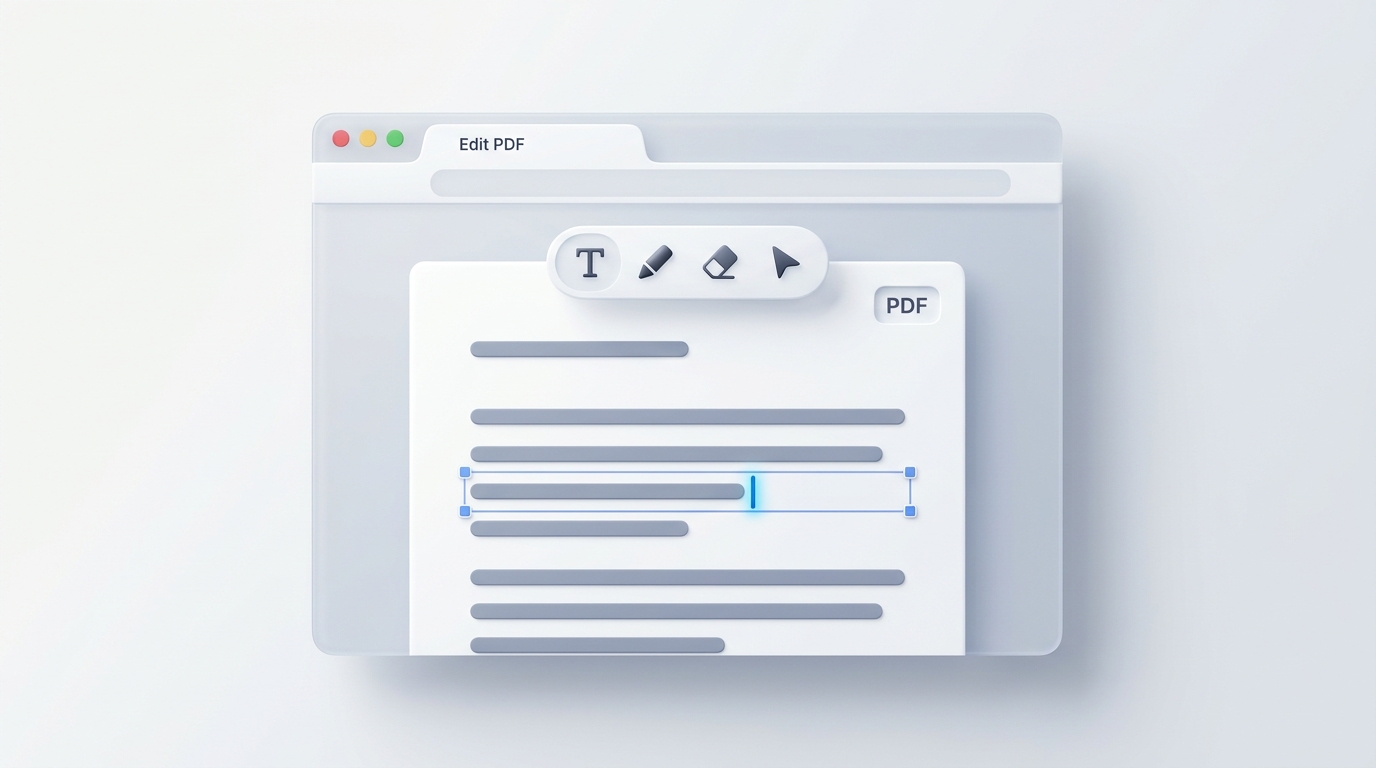
You download an invoice, an application form, or a lease agreement, and you spot a minor problem.
A date needs updating, a spelling error needs fixing, or there is an empty line waiting for your name. You double-click the file to make the adjustment, and your operating system immediately asks if you would like to start a $240-a-year commercial software subscription.
Paying an expensive recurring fee just to adjust three words or fill out an occasional form is hard to justify. On the flip side, uploading confidential tax returns, employment contracts, or financial statements to unknown cloud websites creates serious privacy risks.
You do not need a bloated desktop publishing suite to make clean, everyday edits. Thanks to modern in-browser document processing, you can edit, annotate, and update PDF files directly in your web browser—completely free, in seconds, and without your files ever leaving your computer.
Understanding how to navigate everyday PDF editing without breaking document layout or compromising confidentiality saves hours of workplace frustration.
3 Workarounds People Rely On (And Why They Usually Disappoint)
Before looking at a streamlined browser approach, it helps to see why everyday PDF editing is notoriously finicky:
1. The Word Processor Route (Importing into Word or Google Docs)
Opening a PDF in Microsoft Word or Google Docs forces the program to convert fixed visual coordinates into flowing text. While this works on simple text-only letters, complex documents usually suffer:
- Multi-column layouts collapse;
- Tables split awkwardly across multiple pages;
- Custom fonts are replaced with generic system fallbacks;
- Embedded logos and signature lines shift randomly.
2. Built-in Operating System Viewers (Mac Preview or Edge)
Built-in tools like macOS Preview or the Microsoft Edge PDF viewer offer basic markup pens. However, they lack dedicated features for masking mistakes, matching surrounding fonts, or adding structured text blocks that blend naturally into officially printed documents.
3. Traditional Cloud Converters
Free online converter websites allow quick uploads, but they present two major drawbacks:
- The Privacy Hazard: Your sensitive personal data, corporate agreements, or financial metrics are transmitted across the public internet to third-party servers.
- The Resolution Drop: Many cloud sites convert vector text into grainy, low-resolution 72 DPI images to save server bandwidth, making your final output look blurry when printed.
In-Browser Editing Workflow: Fixing Documents Locally
You can make precise edits without installing software or uploading documents by using our client-side Edit PDF Tool.
[ Your Local Device ]
         │
         ▼ (Drag & Drop)
[ Secure In-Browser Canvas ] ──► Insert text, white out typos, annotate
         │
         ▼ (Instant Export)
[ Clean, Ready-to-Send PDF ]
Direct Document Loading in Memory
Open the Edit PDF Tool in Chrome, Safari, Edge, Firefox, or Brave. Drag your document directly onto the page.
Because the parser loads pages straight into client-side RAM, even 50-page contracts render almost instantaneously. Crucially, your document bytes never touch a cloud server, allowing you to edit payroll records or agreements even while working offline on an airplane.
Modifying and Correcting Content
The workspace provides targeted tools designed for everyday office adjustments:
- Type-and-Place Text: Click on any section of the page to place new text boxes. Adjust font family, font size, and color to harmonize with the author’s original typography.
- The “Clean Whiteout” Overlay: Need to replace an outdated pricing figure or obsolete address? Drop a crisp white rectangle over the old characters to mask them visually, then type the corrected value on top.
- Review Markups & Freehand Pens: Highlight pivotal clauses for counterparties or draw callout annotations to flag review feedback.
- Geometric Guides: Insert precise callout boxes or directional arrows to draw attention to signature lines or required checkboxes.
Compiling and Exporting
When finished, click Save / Download PDF. The browser re-compiles the vector coordinate tree and serves the newly generated document directly to your local drive. Your original source file remains untouched.
Important Security Tip: Visual Masking vs. Permanent Redaction
When updating documents that contain private numbers, understanding this distinction is crucial:
[!NOTE] When to Use Whiteout vs. When to Redact:
- Use Whiteout/Masking in Edit PDF: Ideal for public documents, typos, changing dates, or updating addresses. Placing a colored box over text hides it visually.
- Use Permanent Redaction for Sensitive Secrets: If you are removing a Social Security number, a bank account number, or confidential pricing from a legal or government submission, simple overlay boxes are not enough. Tech-savvy recipients can sometimes select, copy, or move overlay shapes to reveal the text underneath.
When private data must be permanently destroyed, use our specialized Redact PDF Tool, which physically strips the underlying text characters from the document code.
3 Practical Habits for Professional-Looking Results
To make sure your edited documents look like official originals rather than rushed patchwork, keep these three simple rules in mind:
1. Match Font Style and Size
Take three seconds to inspect the existing text around your edit. Is the document using a modern sans-serif font (like Arial or Calibri) or a classic serif font with decorative tails (like Times New Roman or Georgia)? Matching the general font category and adjusting font size by just one or two points makes edits virtually invisible.
2. Mind the Baseline Alignment
When filling in blank lines on a flat form, do not let your typed letters sit directly on top of the black horizontal line. Position your text box roughly 2 to 3 millimeters above the line. This small gap mimics the look of a professionally typeset document.
3. Remove Unnecessary Blank Pages
Office copiers and multi-page exports often append an empty page or a page full of irrelevant legal boilerplate at the very end. Before sending your file, run it through our Remove Pages Tool to prune blank sheets and keep your deliverable neat and lightweight.
Post-Edit Hand-Off: Final Document Touches
Before emailing your updated file to clients or colleagues, consider these finishing steps:
- Affix Legitimate Signatures: If the edited agreement concludes with an empty signature block, use our Sign PDF Tool to apply an authentic drawn or typed signature without printing.
- Prune Trailing Blank Pages: Strip unnecessary back-matter sheets or empty scanner covers using Remove Pages to maintain a compact file size.
- Seal Completed Versions: If you want to ensure recipients view your document without making further unintended modifications, lock down permissions using our zero-upload Protect PDF Tool.