


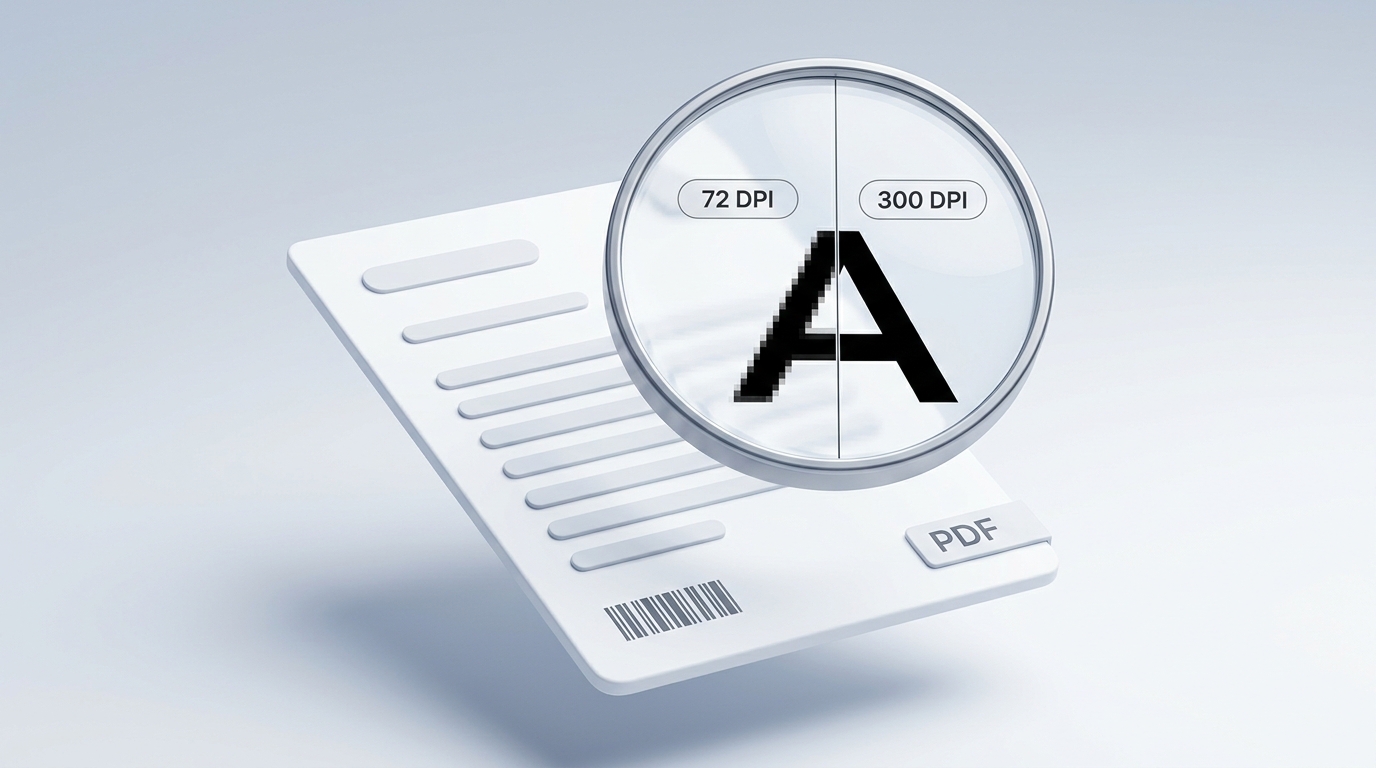
You have a pristine digital PDF: a certificate of completion, a high-resolution marketing flyer, an architectural floor plan, or a detailed tax invoice. When viewed on your computer, the letters are razor-sharp, even when you zoom in to 400%.
Then comes the moment you need it as an image:
- An online portal insists on uploading an image file instead of a PDF;
- You want to embed a diagram directly into a slide presentation;
- Or you need to post an announcement on social media.
You run the document through a generic free online converter, download the resulting JPG, and open it. Immediately, disappointment hits.
The small print looks fuzzy, gray halos surround every letter, barcode lines bleed together, and the whole document looks like it was photographed through frosted glass.
Why does an ultra-crisp PDF turn into an unreadable mess the second it becomes an image? More importantly, how can you convert your documents into print-grade, high-definition JPGs without paying for Photoshop or enterprise software?
Examining how vector rendering differs from pixel rasterization reveals the technical reason—and how local GPU acceleration resolves it.
The Root Cause: Mathematical Vectors vs. Fixed Pixels
To understand why images lose quality, it helps to know how PDFs and JPGs store information differently:
- PDFs Use Infinite Vector Math: When you look at text or line art in a standard digital PDF, your computer isn’t looking at a picture. It is reading mathematical instructions: “draw a straight line from point A to point B” or “render this character font outline.” Because it is pure geometry, you can zoom in infinitely, and the edges never blur.
- JPGs Use a Fixed Grid of Colored Dots (Pixels): An image file cannot store mathematical formulas. It must take those vector lines and freeze them onto a grid of colored pixels (a process called rasterization).
The quality of your converted image depends entirely on how many pixels you pack into every inch of that grid. This density is measured in DPI (Dots Per Inch).
The Hidden Truth: The “72 DPI Bandwidth Trap”
If converting a PDF into an image is just math, why do most free online converters produce blurry files?
The answer comes down to cloud server economics.
[ Generic Cloud Converter ]
  └── Server renders page at 72 DPI (File size: ~200 KB) ──► Minimizes server bandwidth bills

[ VersaPDF In-Browser Engine ]
└── Uses your device GPU at 300 DPI (File size: ~3 MB) ──► Razor-sharp print quality for free- Server Bandwidth Is Expensive: Converting an A4 page to an ultra-sharp 300 DPI image creates a high-resolution canvas with nearly 8.7 million pixels (about 2MB to 5MB per page). Converting that same page to a low-res 72 DPI canvas creates only 500,000 pixels (around 200KB).
- Websites Cut Corners on Purpose: For a cloud website processing tens of thousands of documents every day, paying server hosting fees to send 5MB images adds up to thousands of dollars in monthly bandwidth bills. To keep their server costs low, most free websites quietly downsample your file to 72 DPI and compress the JPEG heavily.
On an old CRT computer monitor from 1998, 72 DPI looked acceptable. But on modern high-resolution iPhone screens, Mac Retina displays, and 4K monitors, a 72 DPI image is stretched across multiple physical display pixels, resulting in blurry typography and jagged edges.
72 vs. 150 vs. 300 DPI: What You Actually Need
To make sure your images always look professional, here is how resolution standards compare in practical daily use:
| Resolution Setting | Dimensions (A4 Page) | Visual Result | Best Used For |
|---|---|---|---|
| 72 DPI (Low Quality) | $595 \times 842\text{ px}$ (~0.5 MP) | Blurry on Retina displays; fine print and small numbers are unreadable. | Quick thumbnail previews only. |
| 150 DPI (Medium Quality) | $1240 \times 1754\text{ px}$ (~2.1 MP) | Legible on screens, but faint halos appear around serif fonts. | Internal team emails and basic web mockups. |
| 300 DPI (High Definition) | $2480 \times 3508\text{ px}$ (~8.7 MP) | Razor-sharp vector fidelity. Small sub-8pt disclaimers and barcodes stay crisp. | Official uploads, legal records, presentations, and printing. |
Local GPU Acceleration: Exporting 300 DPI Without Server Compression
Because client-side WebAssembly shifts execution to your computer’s local graphics processor, outbound server bandwidth limits do not exist. That means our engine can render full 300 DPI archival resolution directly in your browser.
Here is how to extract publication-grade images from your documents:
Feeding Pages to the Local Rasterizer
Open the PDF to JPG Tool in your browser. Drop your target PDF into the workspace. Because rendering happens via local GPU shaders rather than a remote cloud job, even large 40-page catalogs initialize without waiting in a server processing queue.
Choosing Page Ranges and Density
Specify whether you want to extract the full document or isolate specific pages (for example, isolating page 1 for a portfolio cover, or pages 12–14 for financial audit exhibits). The client-side engine renders vector paths onto an off-screen high-density canvas buffer, maintaining exact sub-pixel font hinting.
Exporting Full-Fidelity Image Bundles
Click Convert to JPG. Within seconds, save your high-resolution images as standalone files or download the full sequence in a consolidated ZIP archive. Because all rasterization occurs in local RAM, your documents remain private and uncompressed.
Troubleshooting Common PDF-to-Image Headaches
1. “My QR Code or Barcode Won’t Scan”
When warehouse manifests, boarding passes, or event tickets are converted at low resolutions, the fine black-and-white grid lines bleed into one another. Scanning apps fail because the contrast between neighboring pixels is lost. Converting at 300 DPI guarantees that high-contrast edges remain sharp, allowing mobile camera scanners to read barcodes instantly.
2. “My Scanned Document Had Crooked Edges”
If you are converting a photograph of an old paper certificate or receipt, you might notice dark desk edges or shadows framing the page. Before or after converting, run your files through our Crop PDF Tool to trim away distracting outer borders and center your content cleanly.
3. “Need to Turn Images Back into a PDF Later?”
If you ever need to combine multiple high-resolution photos, receipts, or exported graphics back into an official, multi-page document, use our matching JPG to PDF Tool. It arranges your pictures cleanly into standard A4 or US Letter sheets without sacrificing image clarity.
Quality over Convenience
Blurry converted images are not user error—they are the direct consequence of legacy cloud converters trading away your image sharpness to reduce their hosting bills.
By taking advantage of modern local hardware rasterization in VersaPDF PDF to JPG, you can extract print-grade, 300 DPI images in seconds, completely free, without handing your documents to an outside party.