


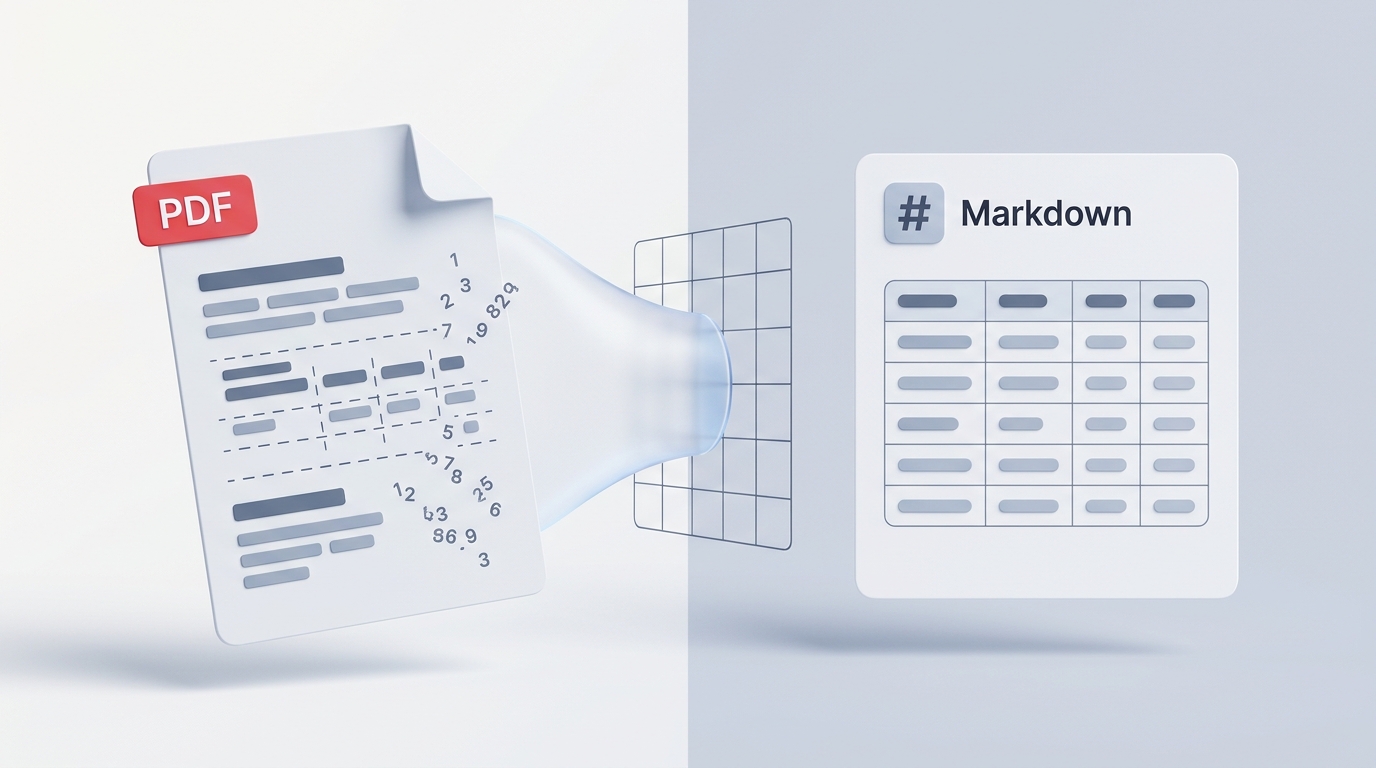
Almost everyone who works with digital documents has experienced the “copy-paste disaster.”
You open a PDF report, a research paper, or an earnings statement. You highlight three paragraphs and a neat financial table, press Ctrl+C, and paste it into Microsoft Word, Notion, or an email.
Instead of clean paragraphs, you get a formatting trainwreck:
- Every single line ends with a hard line break, turning smooth sentences into chopped-up phrases;
- Multi-column documents read horizontally straight across the page, blending two completely different columns into an unintelligible mess;
- The financial table completely disintegrates—numbers detach from their column headers, landing in a chaotic pile of digits;
- If you paste that jumble into an AI assistant like ChatGPT or Claude, the model hallucinates or misinterprets key numbers because the underlying context was scrambled.
Why does something as basic as copying text fail so consistently? And more importantly, how can you extract clean, structured text and tables without spending hours manually fixing spacing and borders?
Understanding the 2D coordinate mechanics behind PDFs clarifies why standard clipboards break down, and how structured extraction solves it.
Why Copying from a PDF Is So Frustrating
To solve the extraction problem, it helps to understand why PDFs behave this way.
When you copy text from a web page or a Word document, the computer understands the semantic structure: it knows where a paragraph starts, which text is a heading, and where table cells begin and end.
PDFs, however, were invented over thirty years ago to replace paper and laser printers. Under the hood, a PDF does not store continuous paragraphs or tables. Instead, it stores visual coordinates on a 2D canvas. A sentence is simply a set of individual character shapes placed at specific millimeter offsets (e.g., “draw letter ‘T’ at coordinate x=45, y=120”).
Because the PDF file itself often has no concept of a “table” or a “sentence,” standard copy-paste tools simply grab characters in the order they appear on the visual grid.
This creates three universal headaches:
1. The Multi-Column Inversion
In academic papers or annual reports with two or three vertical columns, humans naturally read down column one before moving to column two. A basic copy command, however, sweeps horizontally across the page. It grabs line 1 of column A, line 1 of column B, line 2 of column A, and so on. The resulting text is complete nonsense.
2. Tabular Disintegration
Tables are relational grids. When you copy a table directly out of a PDF into a spreadsheet or word processor, the invisible borders vanish. Numbers end up divorced from their dates, currencies, and category titles. A figure like $14,200 loses its association with “Q3 Operating Expenses,” leaving you guessing which number belonged to which row.
3. The “AI Hallucination” Trap
Many analysts and students copy PDF excerpts into AI tools for summarization or research. When you feed an LLM scrambled text with missing table relationships, the model cannot reliably understand the hierarchy. It frequently invents plausible-sounding answers or misquotes critical statistics simply because the input text was garbled.
The Solution: Converting PDF to Structured Markdown
The most efficient way to rescue text and data from a locked PDF is to convert it into structured Markdown rather than plain text.
Markdown is the clean, human-readable formatting language used by modern productivity apps like Notion, Obsidian, Slack, and GitHub. It represents documents using simple, universal symbols:
- Headings are marked with
#and##, preserving your document’s hierarchy; - Bulleted and numbered lists stay cleanly organized;
- Tables are structured using clean pipe syntax (
| Header A | Header B |), keeping columns and rows locked in perfect alignment.
Once text is extracted as clean Markdown, you can paste it directly into Word, Google Docs, Notion, or an AI prompt with zero line-break clutter.
Streamlined Extraction: Transforming 2D Coordinates into Markdown
You do not need to install command-line utilities, write Python scripts, or pay for complex enterprise software. You can extract structured text and tables directly on your client machine with our PDF to Markdown Tool.
[ Messy Multi-Column PDF ]
            │
            ▼ (Drag & Drop)
[ Client-Side Spatial Engine ] ──► Reconstructs paragraphs, detects table grids
            │
            ▼ (Instant Output)
[ Clean Structured Markdown ] ──► Paste to Notion, Word, Excel, or LLMs
Ingesting Multi-Column Reports Locally
Navigate to the PDF to Markdown Tool in your browser. Drag and drop your PDF into the workspace. Because the extraction engine runs via compiled WebAssembly on your own device, your document never touches a cloud server. If you are extracting numbers from confidential bank statements or internal company financials, your sensitive data stays safely on your machine.
Spatial Reconstruction & Table Parsing
Rather than dumping raw characters in horizontal scan order, our local engine analyzes the spatial relationships of the text:
- It identifies multi-column blocks and reads down columns in proper sequential order;
- It recognizes tabular alignments, converting visual data grids into clean Markdown pipe tables;
- It eliminates arbitrary line breaks while preserving true paragraph breaks.
Copying to Clipboard or File Export
Within seconds, the formatted Markdown text renders on your screen. You can either click Copy to Clipboard to paste it straight into your notes or spreadsheet, or download the formatted .md file for local documentation.
Comparing Your Extraction Methods
Depending on what you are trying to accomplish, here is how different text extraction methods stack up:
| Feature & Capability | Standard Copy-Paste (Ctrl+C) | Generic Cloud OCR Tools | VersaPDF In-Browser Markdown |
|---|---|---|---|
| Paragraph Flow | Broken with hard line breaks | Varies (often inconsistent) | Clean, continuous paragraphs |
| Table Preservation | Flattens into loose text | Often misaligns columns | Preserved pipe tables (| Col A | Col B |) |
| Multi-Column Handling | Scrambles horizontal lines | Mixed results | Correct vertical reading order |
| Data Privacy | High (local clipboard) | Low (file sent to cloud server) | High (100% private in-browser processing) |
| Compatibility | Plain text only | Formatted text | Pastes seamlessly into Notion, Word, & AI |
Pro-Tips for Handling Complex Research Bundles
1. Extract Targeted Pages from Massive Reports
If you only need three tables from page 45 of a 200-page annual financial report, converting the entire document is unnecessary.
First, open our Extract Pages Tool to pluck out only the specific pages containing your desired data. Then, drop that lightweight excerpt into the PDF to Markdown Tool. You will have your tables extracted in under ten seconds.
2. Going Full Circle: Markdown Back to PDF
If you use your extracted Markdown to write summaries, draft articles, or compile reports in tools like Obsidian or Notion, you will eventually need to share your work back as a polished document.
Instead of struggling with printer dialogs or messy browser PDF exports, use our Markdown to PDF Tool to convert your clean Markdown back into a sharp, beautifully styled vector PDF deliverable.
Reclaiming Document Usability
Stop wasting twenty minutes re-typing tables and deleting hard line breaks by hand. PDFs may have been designed for laser printers in the 1990s, but with modern in-browser spatial extraction, you can free your text and tables into clean, structured data in seconds.